How to set up your Bookitly profile
This guide walks through every part of setting up your Bookitly profile, in order of impact, with steps for both the web dashboard and the mobile app. Most steps take two minutes or less. If you're short on time, start with Step 1 and Step 2, they make the biggest difference to how your profile looks to new clients.
Add photos to your gallery
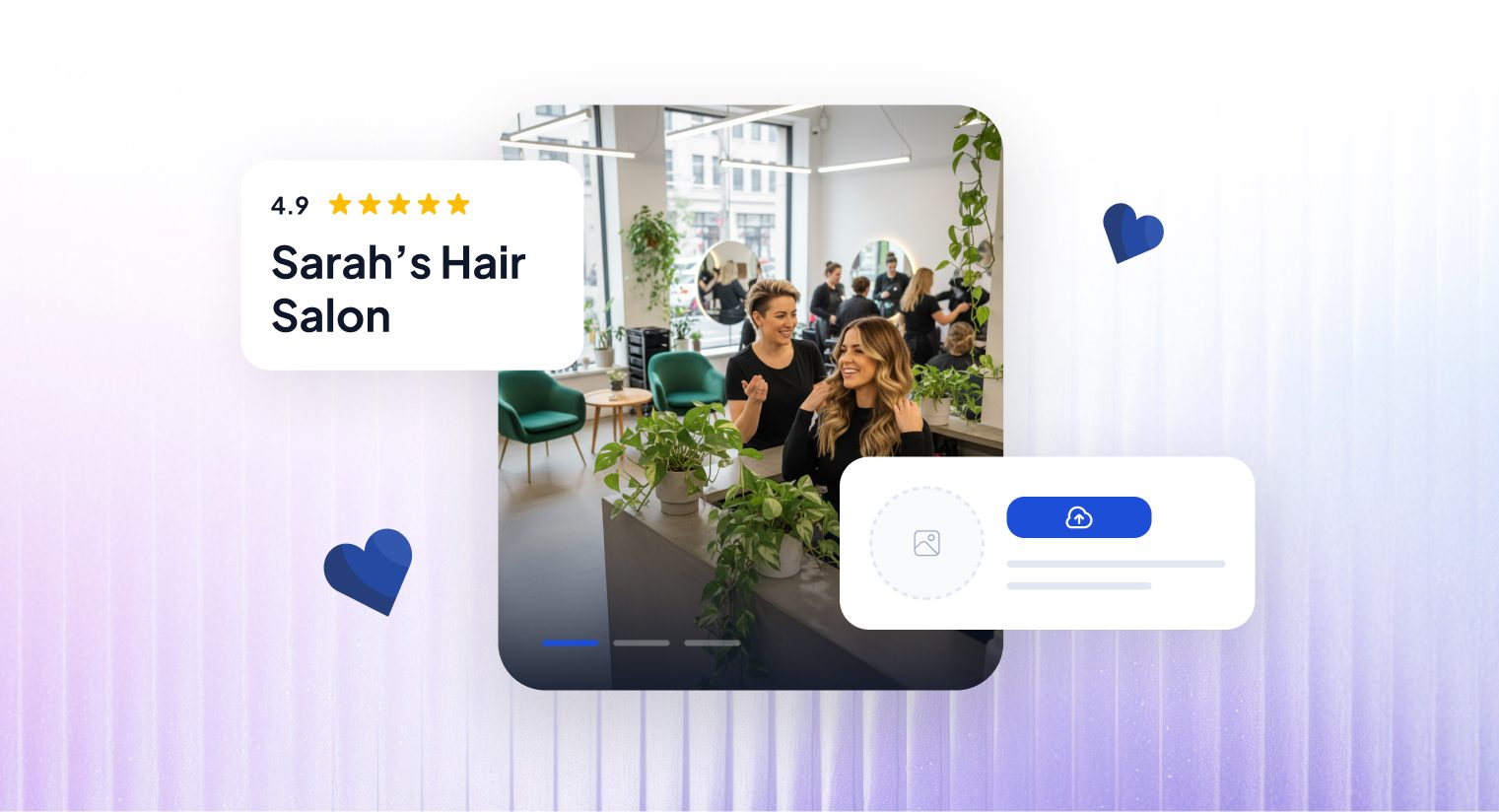
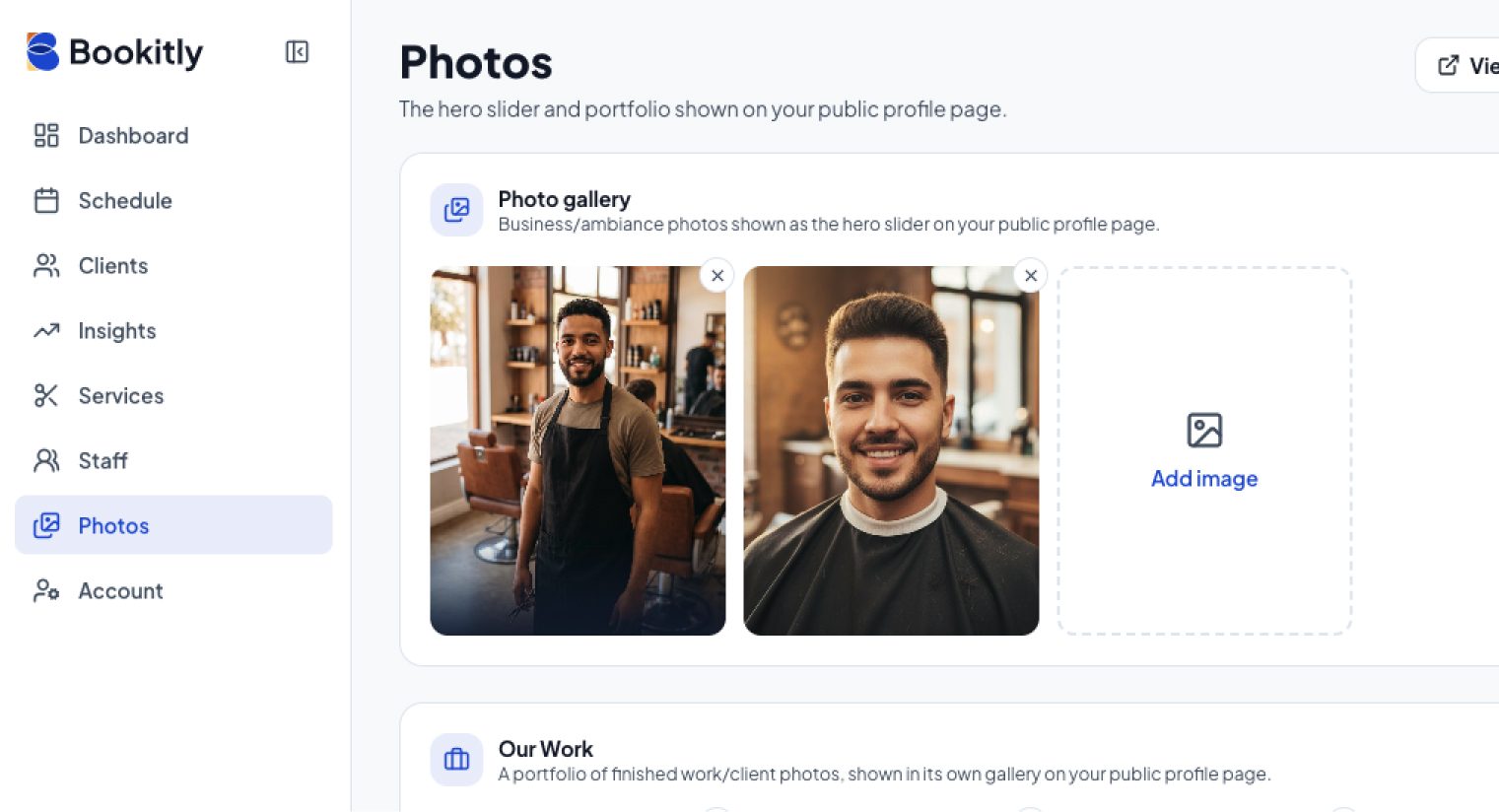
Available on every plan, including Free. The photo gallery is the large banner area at the top of your public profile, next to your business name and bio. If no photos have been added here, this space appears as an empty grey box instead of showcasing your work. Upload at least 2 or 3 photos of your work, your space, or your team in action. These photos rotate as a slideshow on your public page.
Where to find it: Dashboard → Photos → Photo gallery section
Write your bio
Your profile has two separate bio fields.
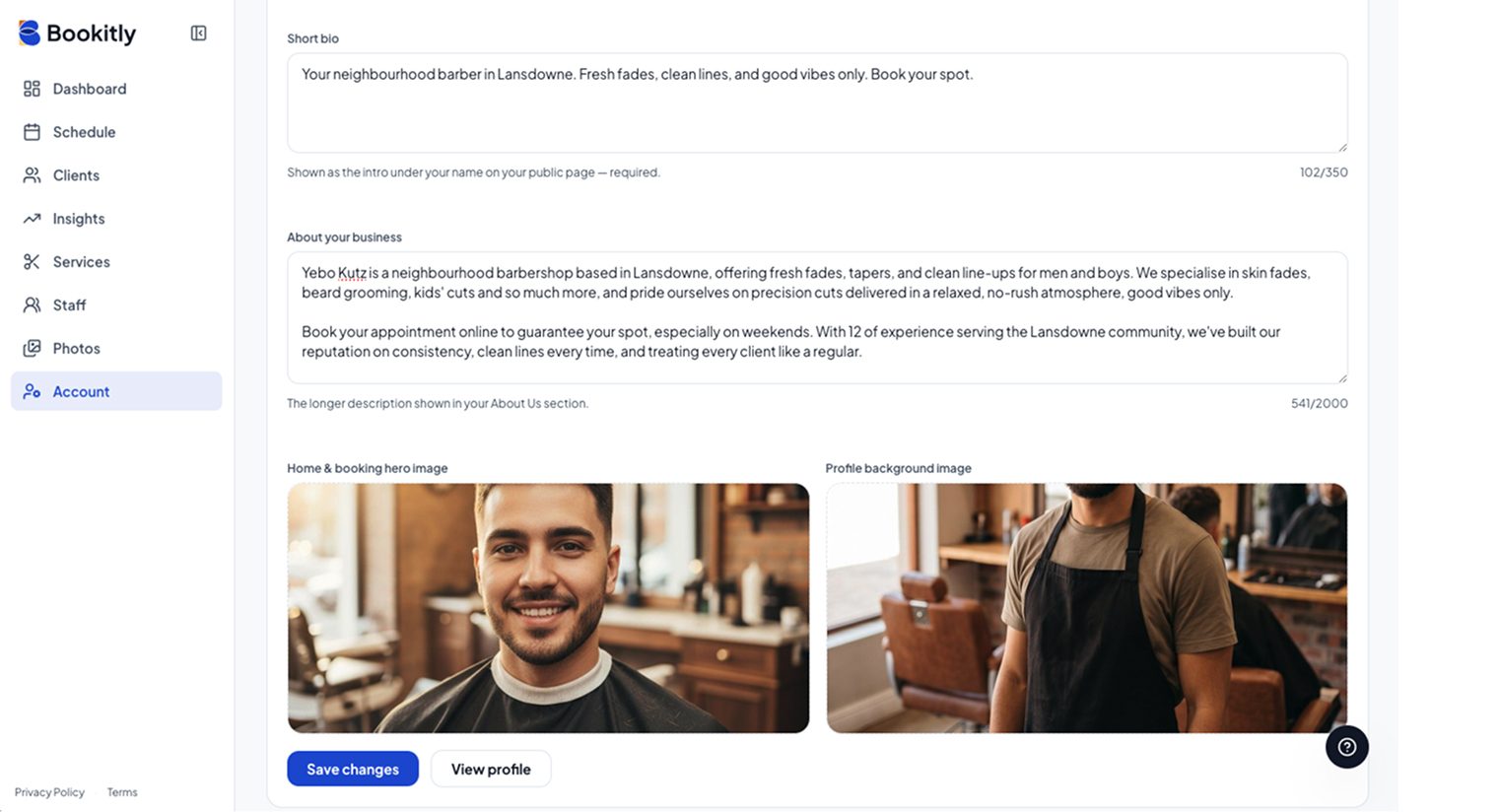
- Short bio (required, up to 350 characters): a one-line summary shown directly under your business name.
- About your business (optional, up to 2000 characters): a longer section further down your page. If this field is left blank, the entire About Us section is removed from your page rather than shown empty.
Where to find it: Dashboard → Account → Business Profile → Short bio / About your business
Tips for writing your About Us section: This section carries more weight than it might seem. Search engines and AI assistants often pull directly from this text when someone searches for a business like yours, so specific, well-written copy can help you get found and recommended. A strong About Us section usually includes:
- What you do, described specifically (for example, "gel manicures, nail art, and lash extensions" rather than "beauty services")
- Where you're based, ideally your suburb or area, not just your city
- How long you've been in business, or where you trained
- What sets you apart, a specialty, technique, or approach
Aim for a short paragraph or two rather than a single sentence. Write it as if answering a question a potential client might type into a search engine, such as "best curly hair specialist in Woodstock."
Add your services
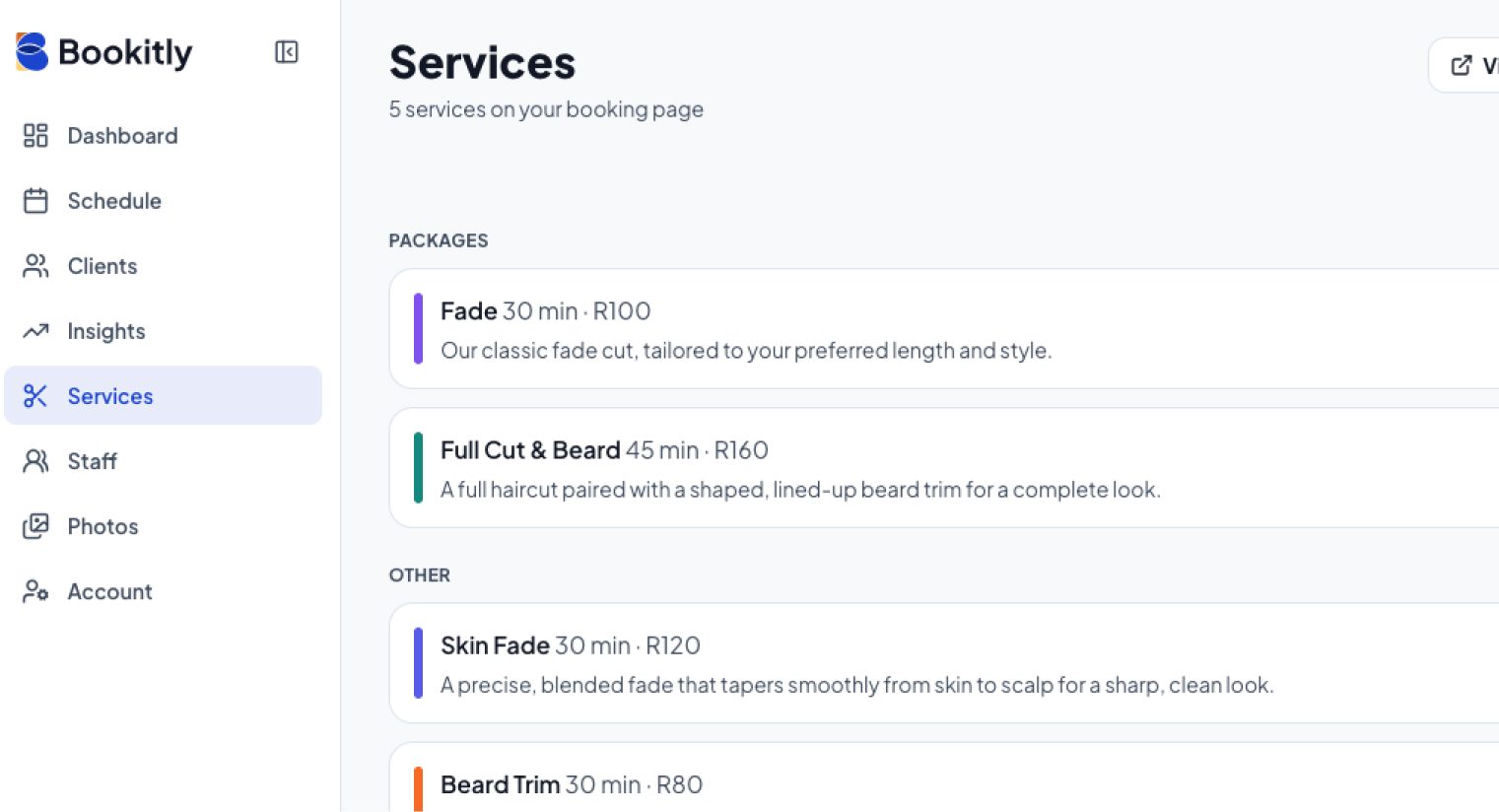
If you don't have at least one active service listed, the entire Services section is skipped on your public page. Visitors have no way to see what you offer or what it costs.
Where to find it: Dashboard → Services
Things to check:
- Add all the services you actually offer, not just one. A profile with a single service listed can look incomplete.
- Make sure no service is priced at R0. A R0 price usually means a service was started and never finished, and it can look like an error to a potential client rather than a genuine offer.
- Confirm each service is marked active.
Set your working hours
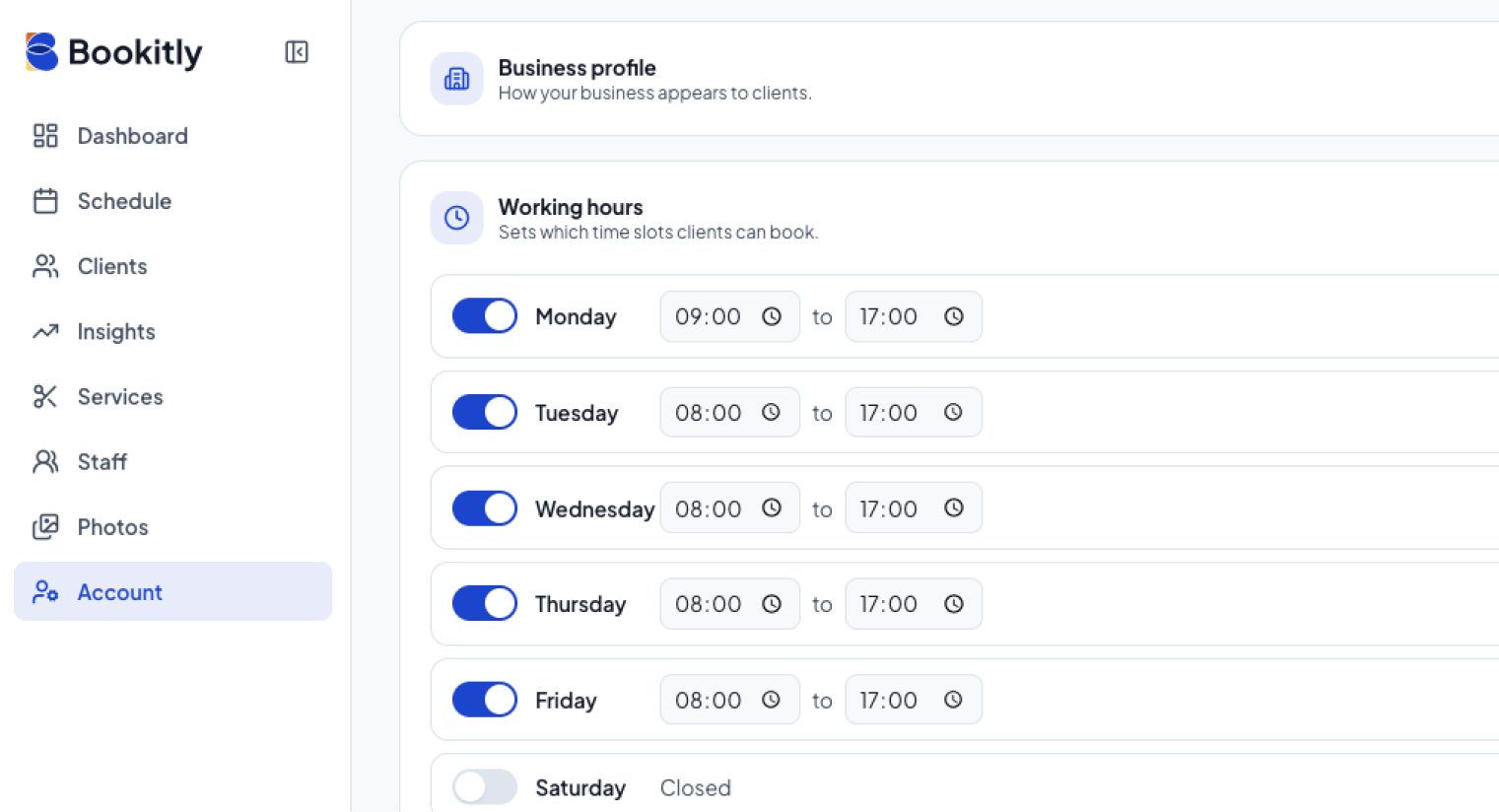
Your working hours are collected during sign-up, but this section only appears on your public page once the Working Hours screen has been opened and saved at least once. If that hasn't happened, the Open Hours section won't display at all, even if hours were set previously.
Where to find it: Dashboard → Account → Working Hours → set your days and times → Save
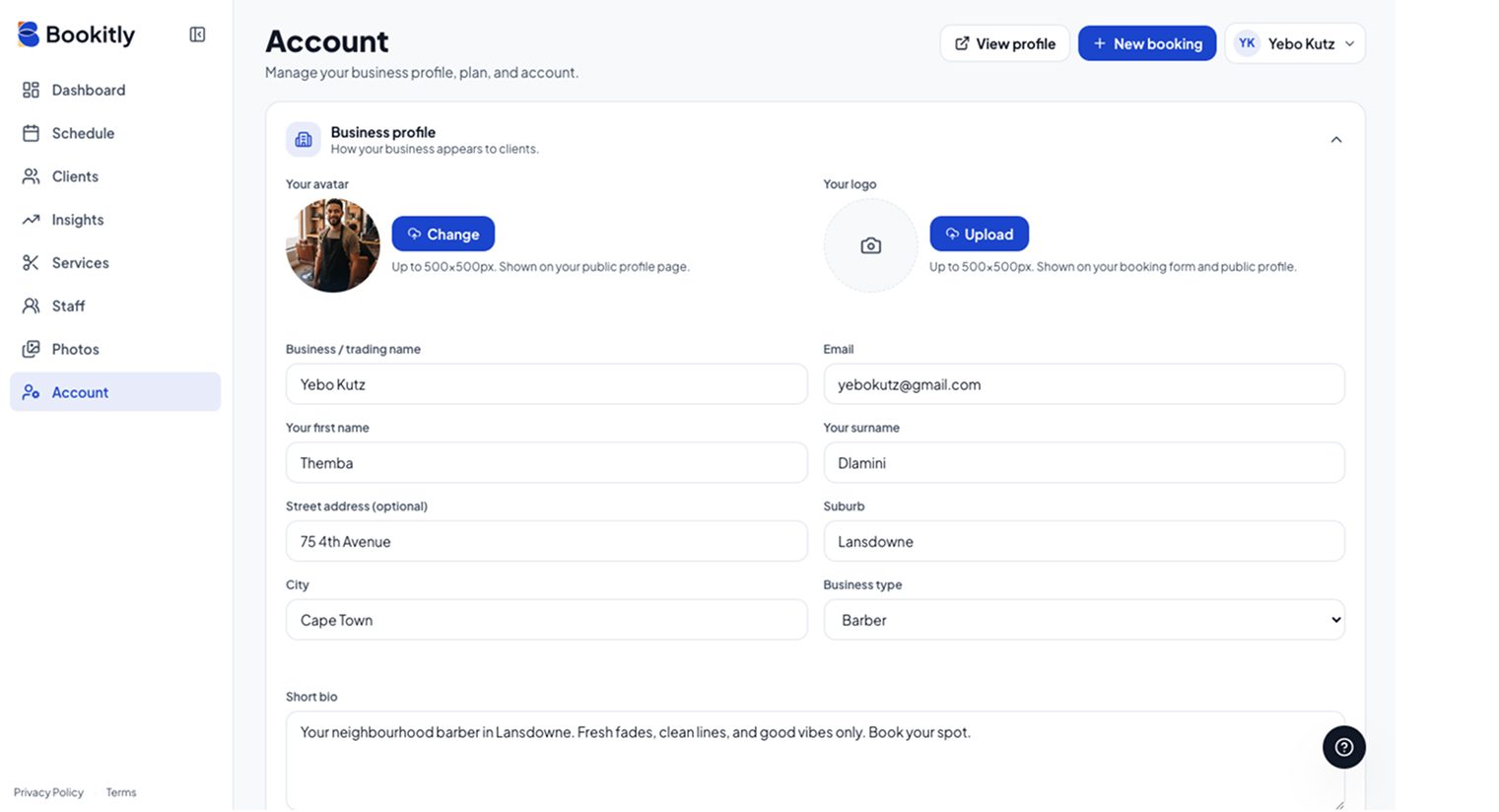
Add your logo and profile photo
Your logo appears at the top of your public profile next to your business name. Your own photo is used as a fallback in the Team section of your profile if no other team members have been added. Square photos work best for both.
Where to find it: Dashboard → Account → Business Profile → Your logo / Your photo
Add your address
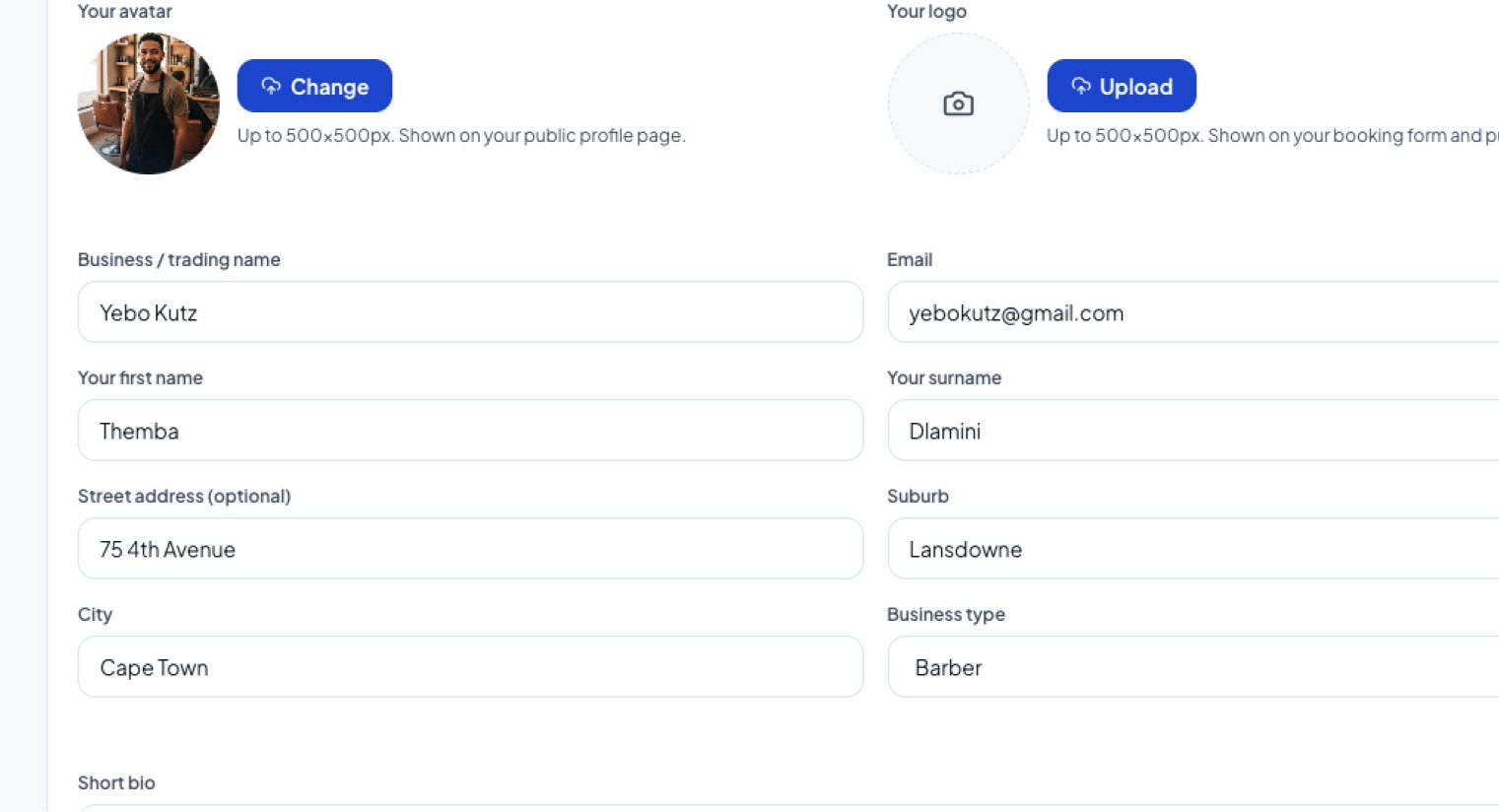
Your public profile always displays a map. Without address details, the map is zoomed out and less useful to clients trying to find you.
Where to find it: Dashboard → Account → Business Profile (street address, suburb, and city fields)
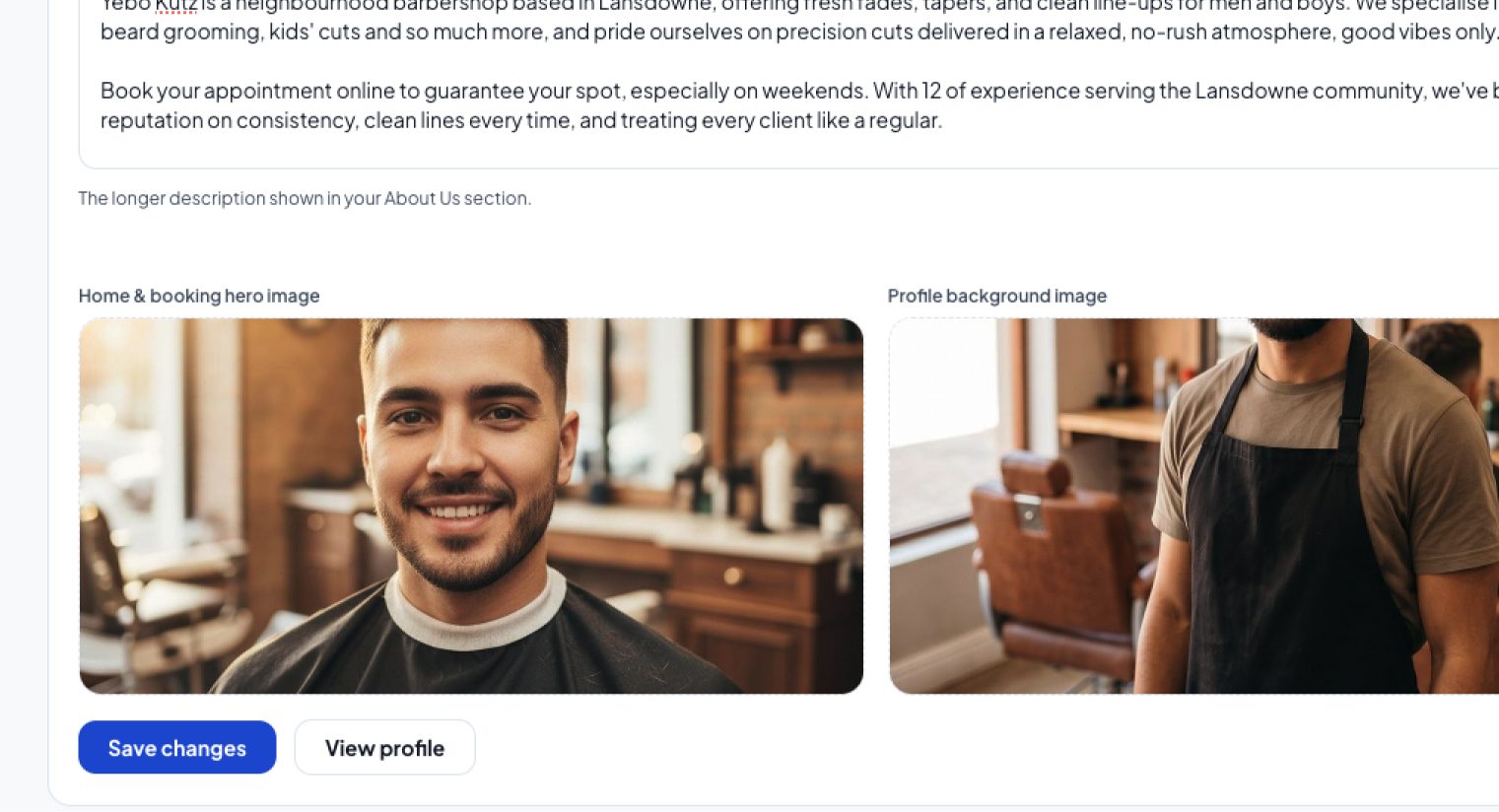
Hero images (affects the mobile app only)
This step is cosmetic and doesn't affect your public web profile, but both fields are edited here on desktop. There are two separate hero image fields:
- Home screen hero image: displays behind the greeting on the mobile app's home screen
- Profile screen hero image: a subtle background image behind the bio on the public profile, easy to miss even when set
Neither of these is the photo gallery covered in Step 1, which remains the most important image area on your profile.
Where to find it: Dashboard → Account → Business Profile
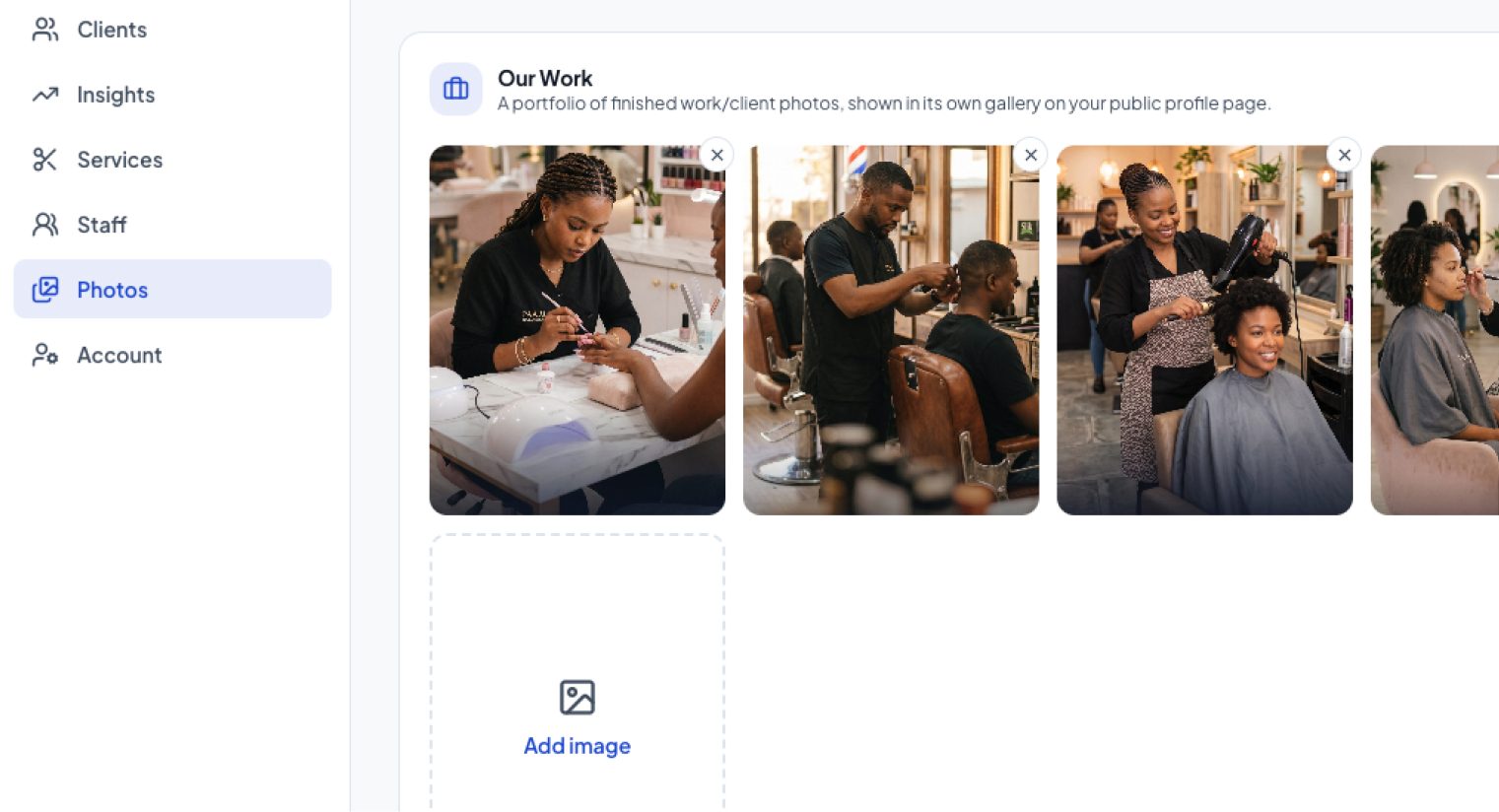
Pro plan: the Our Work gallery
Pro accounts have access to a second gallery further down the public profile page, called Our Work. This is separate from the main photo gallery in Step 1, which is available on every plan.
Where to find it: Dashboard → Photos → Our Work section